Delete Broswer Cache and Cookies in Chrome
- Open Google Chrome.
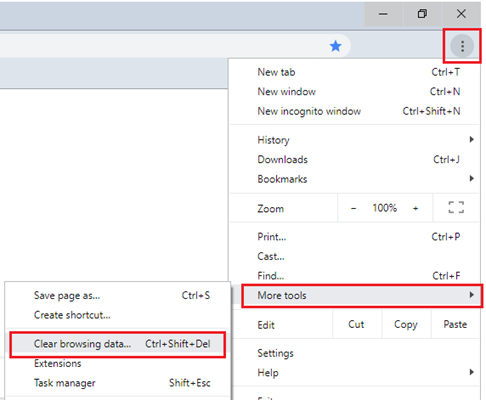
Click the menu button ⋮ > More Tools > Clear browsing data.
On the Clear browsing data window, select which time range you want to clear.
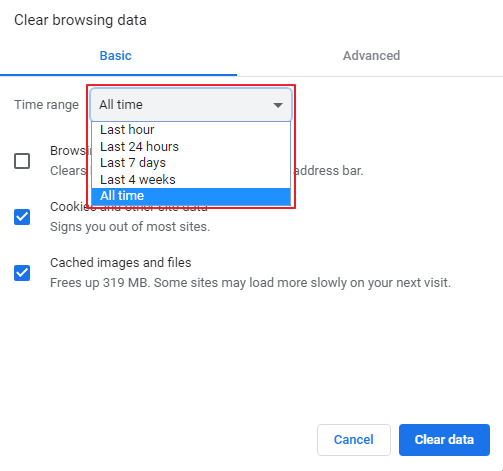
- Tick Cookies and other site data and Cached images and files, and then click Clear data.
Related Articles
Delete browser cache and cookies in Mozilla Firefox
Open Mozilla Firefox. Click the menu button ☰, then select Settings. Select Privacy & Security, scroll to Cookies and Site Data, and then click Clear Data. Tick both Cookies and Site Data and Cached Web Content, and then click Clear. A confirmation ...
Delete browser cache and cookies in Microsoft Edge
Open Microsoft Edge. Click the menu button … > Settings. Under Clear browsing data, click Choose what to clear. Tick Cookies and saved website and Cached data and files, and then click Clear.
How to Export Saved Passwords from Google
How to Export Saved Passwords from Google Chrome Exporting your passwords is a useful way to back up your credentials and migrate them to a new service. Follow these steps to securely download your data as a CSV file. Step 1: Open Google Password ...
iOS Remove Google Account (Native Mail App)
Open Settings Tap Mail Tap Accounts Select your Gmail account Tap Delete Account Confirm deletion
Add a shared mailbox to Outlook mobile
Outlook for iOS If you use Outlook for iOS or Outlook for Android, you can add a shared mailbox you have permissions to access on Outlook Mobile. Use a shared mailbox on a mobile device (phone or tablet) To access a shared mailbox on a mobile device, ...