Delete browser cache and cookies in Microsoft Edge
- Open Microsoft Edge.
Click the menu button … > Settings.
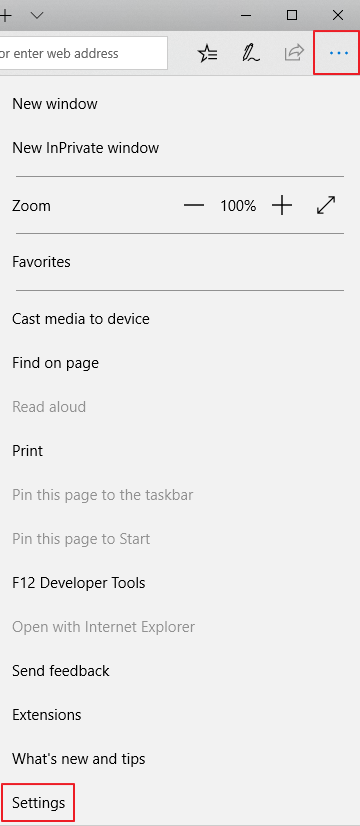
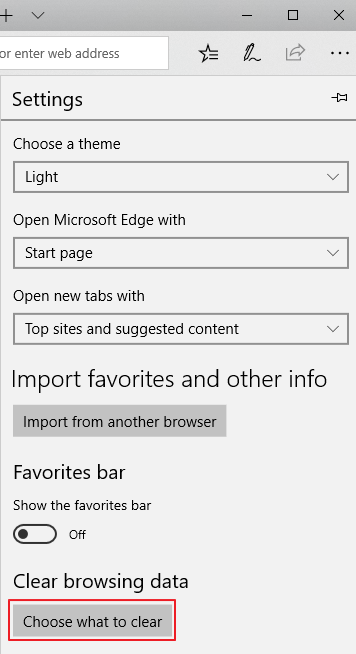
Under Clear browsing data, click Choose what to clear.
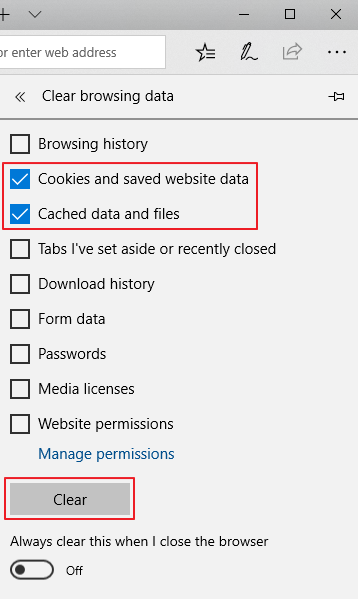
Tick Cookies and saved website and Cached data and files, and then click Clear.
Related Articles
Delete browser cache and cookies in Mozilla Firefox
Open Mozilla Firefox. Click the menu button ☰, then select Settings. Select Privacy & Security, scroll to Cookies and Site Data, and then click Clear Data. Tick both Cookies and Site Data and Cached Web Content, and then click Clear. A confirmation ...
Delete Broswer Cache and Cookies in Chrome
Open Google Chrome. Click the menu button ⋮ > More Tools > Clear browsing data. On the Clear browsing data window, select which time range you want to clear. Tick Cookies and other site data and Cached images and files, and then click Clear data.
Microsoft Teams: New chat sections for muted and meeting chats
Introduction Microsoft Teams is introducing two new system chat sections called Muted chats and Meeting chats. These sections allow users to organize their chat and channels list by grouping muted conversations and meeting chats into dedicated ...
Enable IE Mode on Windows 10 and 11
Enable IE mode on Microsoft Edge There are multiple ways to enable IE, follow anyone of the menthods to enable IE. Method 1 To enable the IE mode, follow the below steps: Open Microsoft Edge on Windows 10. Click Settings and More (ellipsis) button on ...
Microsoft Teams: AI meeting recap without transcript to meet compliance policies
Introduction Recap without saving transcript provides an optional way for Copilot to generate a meeting summary using live meeting context, without saving a meeting transcript or recording. This capability is intended for scenarios where ...