How to use a Shared Calendar
One of the great things about using a shared mailbox is that anyone who has access to the shared mailbox also has full access to the calendar. You can create, edit, and delete events in the calendar. Use the shared calendar just as you would use your own calendar. Here's a short list of things you can do with the shared mailbox calendar:
Let your team know when you're going on vacation or when you’ll be out of the office.
Create a team meeting.
Edit a calendar event that someone else created.
Cancel a meeting that someone else created.
To access the shared calendar, do the following:
Sign in to your mailbox using Outlook on the web, and then select Calendar.
Right-click Other Calendars, and then click Open calendar.
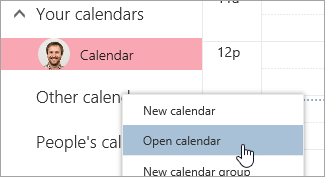
In From directory, search for the shared calendar you want to open. Select the shared mailbox you want to open, and then click Open.
The shared calendar displays in your Calendar folder list.
Related Articles
How to Share Your Calendar in Outlook on the Web (Microsoft 365)
Step 1: Open Your Calendar Go to Outlook on the web (https://outlook.office.com) Click the Calendar icon in the left-hand navigation pane Step 2: Click “Share” At the top of the calendar page, click “Share” (Sometimes labeled “Share calendar” ...Add a shared mailbox to Outlook mobile
Outlook for iOS If you use Outlook for iOS or Outlook for Android, you can add a shared mailbox you have permissions to access on Outlook Mobile. Use a shared mailbox on a mobile device (phone or tablet) To access a shared mailbox on a mobile device, ...Open Shared Mailbox in a Separate Window
Use this method if you want to view and manage the email for the shared mailbox in its own browser window. This method also lets you receive notifications of new items in the Inbox of the shared mailbox. Sign in to your account in Outlook on the web. ...Send E-mail from Shared Mailbox
Choose New mail above the folder list. A new message form opens in the reading pane. At the top of the message, choose > Show From. This option shows you that the people who receive the email message will see it comes from the shared mailbox and not ...Intro to Teams - Latest Slide Deck
Latest